
Download ShareMouse – Multi‑Desktop Mouse & Keyboard Sharing Tool
Overview
ShareMouse is a freemium utility that lets you control multiple computers with a single mouse and keyboard. Developed by Bartels Media GmbH, the software creates a virtual KVM (Keyboard‑Video‑Mouse) over your local network, allowing you to glide the cursor from one screen to another as if all machines were connected to the same workstation. The moment the mouse pointer reaches the edge of one display, it “jumps” to the adjacent computer, instantly handing over control without any extra hardware.
What sets ShareMouse apart from traditional hardware KVMs and even from competitors like Synergy is its emphasis on security (AES‑encrypted traffic, optional password protection) and ease of use (drag‑and‑drop file transfer, clipboard sync). Whether you’re a developer juggling a Windows workstation, a macOS laptop, and a Linux server, or a creative professional using a mix of PCs and tablets, ShareMouse eliminates the clutter of multiple peripherals and streamlines workflow across platforms. The free tier supports up to two computers, while the paid Pro version expands the node limit, adds custom hotkeys, and provides priority support.
In short, ShareMouse is a secure, flexible, and user‑friendly solution for anyone who needs to “share” input devices across a heterogeneous desktop environment.
Supported operating systems: Windows 10/11, macOS 10.13‑13 (Ventura), Linux (Ubuntu, Fedora, Debian), and limited support for Android tablets (as a secondary display). iOS devices are not directly controllable but can receive clipboard content via the companion app.
Key Features of ShareMouse
- Seamless cursor transition: Move the mouse pointer across any number of connected screens with a simple edge‑to‑edge motion.
- Unified keyboard input: Type on any linked computer without switching keyboards; the active window receives keystrokes automatically.
- Drag‑and‑drop file sharing: Transfer files and folders between machines by dragging them across the shared cursor boundary.
- Clipboard synchronization: Copy (Ctrl‑C) on one device and paste (Ctrl‑V) on another; text, rich‑format, and images are preserved.
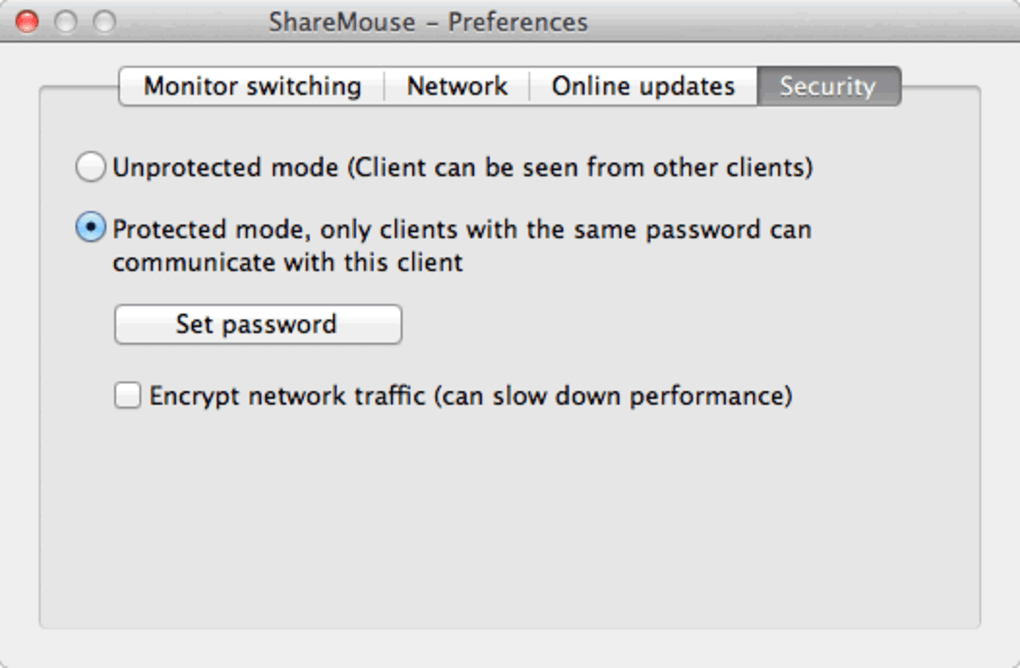
- AES‑256 encryption: All mouse, keyboard, and clipboard data are encrypted end‑to‑end, preventing eavesdropping on the LAN.
- Password‑protected connections: Optionally require a password before a new machine can join the ShareMouse network.
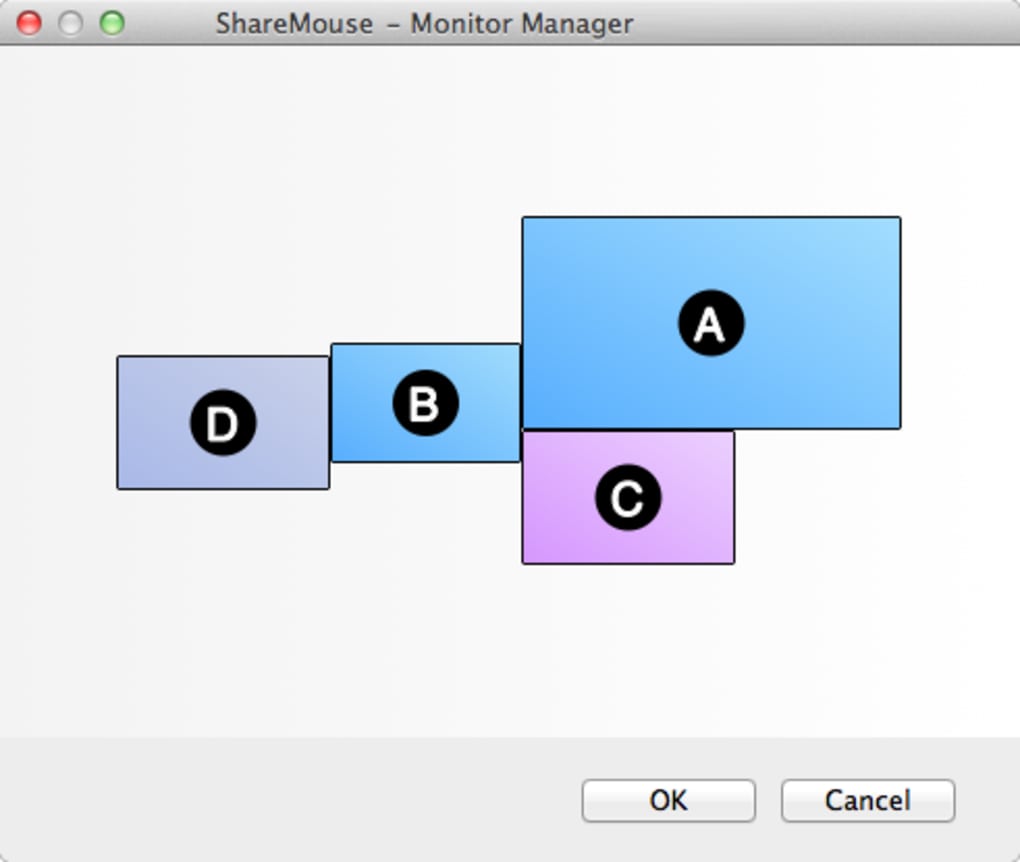
- Multi‑monitor awareness: The software detects each monitor’s resolution and orientation, ensuring smooth transitions even on ultra‑wide or portrait displays.
- Remote lock & screen saver control: Lock or unlock all linked PCs simultaneously, or trigger a screen saver from any device.
- Automatic discovery: ShareMouse scans the local network and lists available computers without manual IP entry.
- Cross‑platform support: Works across Windows, macOS, and major Linux distributions, making it ideal for mixed‑OS environments.
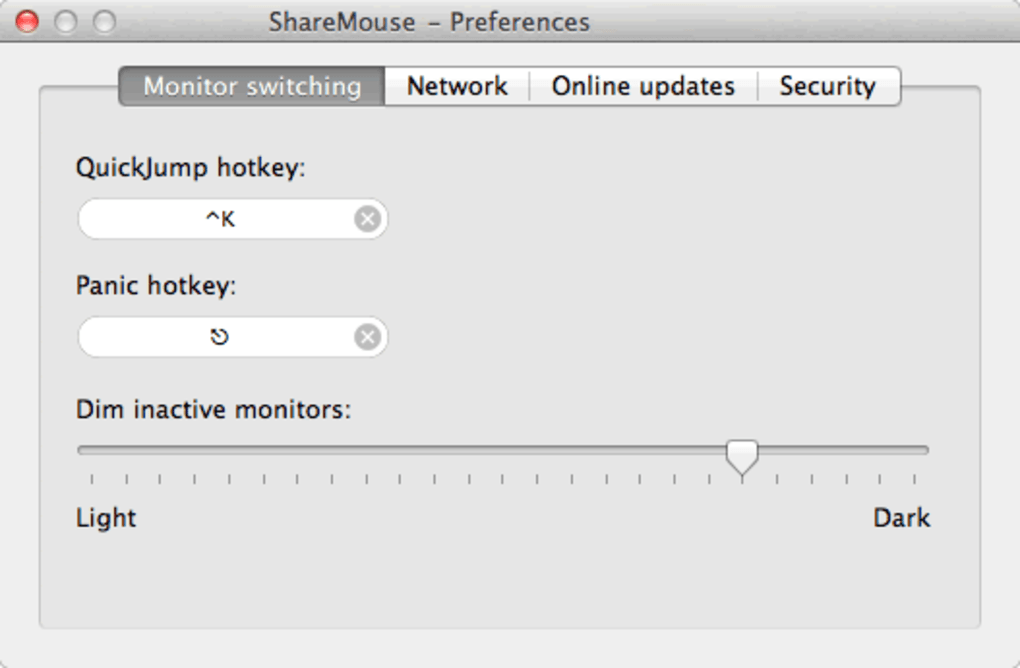
- Custom hotkeys & shortcuts: Define hotkeys to switch machines instantly, launch apps, or perform system actions.
- Pro version upgrades: Unlimited computers, priority technical support, advanced logging, and enterprise licensing options.
Installation & Usage Instructions
Getting ShareMouse up and running is designed to be a frictionless experience, even for users who are not comfortable with networking details. Follow these steps to install and configure the software on each computer you wish to control:
Step 1 – Download the Installer
Visit the official ShareMouse website and click the Download button that matches your operating system (Windows, macOS, or Linux). The installer is a small (< 10 MB) executable for Windows, a .dmg package for macOS, and a .deb/.rpm package for Linux distributions. For the free tier, no registration is required; for the Pro version, you will need to enter your license key after installation.
Step 2 – Run the Installer
On Windows, double‑click the .exe file and follow the wizard prompts. Accept the license agreement, choose the installation folder (default is C:\Program Files\ShareMouse), and let the installer copy the necessary files. macOS users should drag the ShareMouse icon into the Applications folder. Linux users can install via the package manager (e.g., sudo dpkg -i sharemouse.deb or sudo rpm -i sharemouse.rpm).
Step 3 – Launch and Initial Configuration
After installation, launch ShareMouse. The first time it runs, it will ask you to create a secure password for network connections—highly recommended for any environment beyond a trusted home network. Next, the software automatically scans the local subnet for other ShareMouse instances. If another computer is already running the app, it will appear in the Devices list.
Step 4 – Arrange Your Screens
Click the Screen Layout button to open a visual map of your connected monitors. Drag each screen icon to reflect the physical arrangement (left‑right, top‑bottom, etc.). This step ensures that the cursor moves in the correct direction when crossing between devices. You can also assign a custom hotkey (e.g., Ctrl+Alt+F1) to switch instantly without moving the mouse to the edge.
Step 5 – Start Using ShareMouse
With the layout saved, simply move your mouse to the edge of one screen; the pointer will appear on the adjacent computer, and the keyboard focus will follow automatically. To transfer a file, drag it from a folder on Computer A across the screen boundary and drop it into a folder on Computer B. Clipboard synchronization works the same way—copy on one machine, switch to another, and paste. All interactions remain encrypted and are never logged locally unless you enable the optional diagnostic log in the Pro settings.
Troubleshooting Tips
- Make sure all computers are on the same LAN subnet and that firewall rules allow inbound UDP traffic on port 41700 (default ShareMouse port).
- If a device does not appear, restart the ShareMouse service or reboot the computer.
- For multi‑network setups (e.g., wired + Wi‑Fi), ensure the primary network adapter is selected in the Network Settings panel.
Pros & Cons
Pros
- Eliminates the need for multiple keyboards and mice, saving desk space and reducing clutter.
- Zero‑configuration discovery makes setup fast, even for non‑technical users.
- AES‑256 encryption and optional password protect all data transfers, providing strong security.
- Drag‑and‑drop file sharing and clipboard sync streamline cross‑platform workflows.
- Supports Windows, macOS, and major Linux distributions, ideal for heterogeneous environments.
- Free tier supports two computers, sufficient for most home users; Pro tier scales without hardware limits.
- Custom hotkeys and screen‑layout editor give power users precise control.
Cons
- iOS devices are not directly controllable; they can only receive clipboard content via a companion app.
- Linux support, while solid, may require manual firewall configuration on some distributions.
- Performance can be affected on very slow or congested networks, leading to occasional cursor lag.
- The free version limits you to two computers, which may be insufficient for larger multi‑PC setups.
- Advanced enterprise features (single sign‑on, centralized management) are only available in higher‑priced business licenses.
Frequently Asked Questions
Is ShareMouse safe to use on a public Wi‑Fi network?
While ShareMouse encrypts all traffic with AES‑256, it is primarily intended for trusted LAN environments. Using it on public Wi‑Fi is possible if you enable the password‑protected connection feature and ensure no other devices are on the same subnet. For maximum security, stick to a private network or VPN.
Can I use ShareMouse to control a virtual machine?
Yes. As long as the virtual machine runs a supported operating system and the ShareMouse client is installed inside the VM, it behaves like any other physical computer on the network. This is handy for developers who run multiple VMs for testing.
What is the latency like when moving the mouse between computers?
In a typical gigabit LAN, latency is barely noticeable—often under 20 ms. On slower Wi‑Fi networks, you may experience a slight delay, but the cursor still feels responsive. The Pro version includes a “Low‑Latency” mode that reduces packet size for faster updates.
Do I need to purchase a license for commercial use?
Yes. The free tier is limited to personal, non‑commercial use. Businesses should acquire a Pro or Enterprise license, which provides additional seats, priority support, and a commercial usage agreement.
How does ShareMouse compare to hardware KVM switches?
Unlike hardware KVMs that require cables and physical ports, ShareMouse works entirely over the network, eliminating the need for extra hardware. It also adds features like drag‑and‑drop file sharing and clipboard sync, which hardware KVMs cannot provide. However, a hardware KVM can be more reliable in environments with unstable networks.
Ready to simplify your workspace? Download ShareMouse now and start controlling all your PCs with a single mouse and keyboard. The free version lets you test the core features instantly, while the Pro upgrade unlocks unlimited devices and advanced security. Experience a clutter‑free desk, faster file transfers, and secure cross‑platform control—download today!







